OpenClaw Features: What It Can Do in 2026
You already know that OpenClaw is a free, open-source AI assistant that works through messaging apps like Telegram, Slack, and WhatsApp. But what can it actually do in real-world workflows?
In this guide, we’ll break down the core OpenClaw features, explain the most common use cases, and compare OpenClaw with AI tools like ChatGPT, Gemini, and Copilot. You’ll see how OpenClaw handles automation, browser control, multi-model support, and self-hosted AI workflows – and where it differs from traditional AI chatbots.
If you’re new to OpenClaw, check out our full OpenClaw review for a deeper breakdown of OpenClaw’s strengths & weaknesses.
Key Features Of OpenClaw At A Glance
Here is a quick overview of OpenClaw’s most important features and who they are best suited for.
What OpenClaw connects to by default
OpenClaw is built to work where your tasks already live. In practice, that means messaging apps, work tools, browser-based workflows, and custom integrations you can wire into your own stack. On TryOpenClaw, you can use the cloud version without setup, and the service is designed to help you get started quickly and keep the AI Agent running continuously.
- Messaging apps: Telegram, WhatsApp, Slack, Discord, and more
- Work tools: Google Workspace, Microsoft Teams, Google Chat, and related collaboration tools
- Automation connections: APIs, webhooks, and other tools for connecting workflows
- Browser tasks: research, extraction, monitoring, and page interactions
If your goal is to make OpenClaw work with the tools you already use, this is the layer that matters most: it lets you move from chatting with an AI to actually using it inside your daily workflow.
|
Feature |
What it does |
Who benefits most |
|
Multi-channel messaging |
Use OpenClaw through Telegram, Slack, WhatsApp, Discord, Signal, and other messaging apps |
Everyone |
|
Multi-model support |
Connect and switch between Claude, GPT, Gemini, DeepSeek, Ollama, and other AI models |
Cost-conscious users, power users |
|
Skills marketplace |
Install add-ons and integrations to extend OpenClaw’s capabilities |
Users with specialized workflows |
|
Autonomous workflows |
Execute multi-step tasks automatically with minimal supervision |
Freelancers, teams, operators |
|
Browser control |
Browse websites, extract information, fill forms, and complete web tasks automatically |
Researchers, marketers, assistants |
|
File processing |
Analyze PDFs, CSVs, Excel files, documents, screenshots, and images with AI |
Office workers, analysts |
|
Voice input/output |
Interact with OpenClaw using voice messages and audio responses |
Mobile users, hands-free workflows |
|
Persistent memory |
Remember conversations, preferences, files, and ongoing workflows over time |
Frequent users, teams |
|
Tool & API integrations |
Connect CRMs, databases, APIs, cloud apps, and external services |
Businesses, developers |
|
Local/self-hosted deployment |
Run OpenClaw on your own machine or VPS for more control and privacy |
Developers, privacy-focused users |
A Breakdown of OpenClaw’s Core Features
At its core, OpenClaw is built around these key capabilities:
- Multi-channel messaging
- Multi-model support
- Skills marketplace
- Autonomous workflows
- Browser control
- File processing
- Voice input/output
- Persistent memory
- Tool & API integrations
- Local/self-hosted deployment
Let’s dig into each of them.
1. Multi-channel messaging
This is OpenClaw’s core feature: instead of opening a separate AI app, you talk to AI right inside the messaging apps you already use.
Supported channels include
- Chat apps: Telegram, WhatsApp, Signal, iMessage, Facebook Messenger, Line, WeChat
- Work platforms: Slack, Discord, Microsoft Teams, Google Chat
- Web & mobile: OpenClaw WebChat (browser-based), companion apps for iOS and Android
- Developer tools: CLI (command line), API access for custom integrations
How it works
You add OpenClaw as a contact or bot in your messaging app. Then you just message it like you would a colleague like “Summarize this document”, “Write a reply to this email”, “What’s on my calendar today”. OpenClaw responds in the same chat.
Why it matters
Most people already have Telegram or Slack open all day. By putting AI there instead of a separate app, you remove the friction of switching apps, which means you’ll actually use AI more often.
Who benefits most:
Everyone
2. Multi models support
OpenClaw doesn’t lock you into one AI model. You get to pick which “brain” powers your assistant — and you can switch anytime.
Supported providers (50+)
|
Provider |
Popular models |
Best for |
Anthropic |
Claude Sonnet, Claude Opus |
Writing, analysis, long documents |
OpenAI |
GPT-4o, GPT-4o mini |
General tasks, coding, versatility |
|
Gemini Pro, Gemini Flash |
Fast responses, affordable | |
Ollama |
Llama, Mistral, Phi |
Free (runs on your machine), privacy |
OpenRouter |
Access to 100+ models |
One API for everything |
Together AI |
Llama, Mixtral |
Affordable hosted open models |
Multi-model routing
You can configure OpenClaw to automatically select the best model for each type of task.
For example:
- Use Claude for writing content (higher quality)
- Use GPT-4o mini for quick questions (lower cost)
- Use Llama via Ollama for sensitive data (stays local)
Why it matters
Different models have different strengths and price points. Being able to choose (and switch) means you get better results for less money and you’re never locked into one vendor.
Who benefits most:
Cost-conscious users, power users
→ Learn how to set up models: API Key Configuration Guide
3. Skills marketplace
Skills are add-ons that give OpenClaw new abilities, think of them like apps for your phone.
Out of the box, OpenClaw can chat, answer questions, and process basic requests. With Skills installed, it can do much more specialized work.
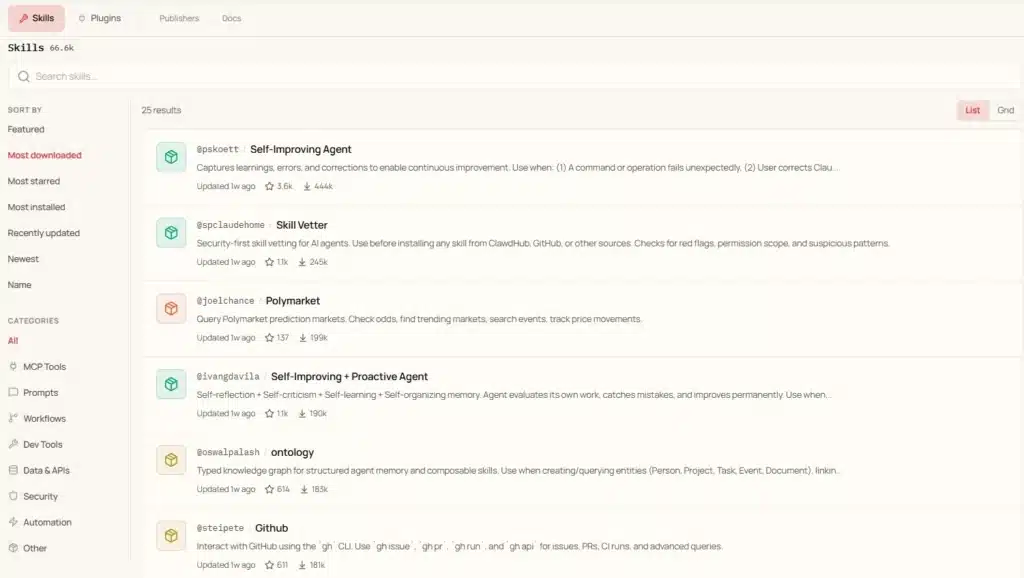
Examples of what Skills can do
- SEO Writer – generate blog posts optimized for search engines, with keyword suggestions and meta descriptions
- Telegram Manager – auto-moderate your Telegram group, welcome new members, summarize long discussions, enforce rules
- Data Analyst – analyze spreadsheets, generate charts, create formatted reports from raw data
- Email Drafter – compose professional emails based on brief instructions, manage templates and follow-ups
- Meeting Notes – transcribe and summarize meetings from audio recordings
- Social Media Manager – schedule posts, generate captions, adapt content for different platforms
- Code Reviewer – review pull requests, suggest improvements, find bugs
- Customer Support – answer FAQs automatically, escalate complex issues, track response times
Where to find Skills
Browse and install from ClawHub.ai – the official OpenClaw Skills marketplace. You can also create your own custom Skills for specific needs.
How Skills work
Each Skill is a package of instructions and tools that OpenClaw loads when needed. You install a Skill once, and then you can invoke it by mentioning its name or by sending a message that matches what it does.
Who benefits most:
Users with specialized workflows
→ Want to explore the full Skills ecosystem? Read OpenClaw Skills Complete Guide.
4. Autonomous workflows
OpenClaw can run tasks automatically on a schedule, no manual intervention required.
What you can automate
- Daily summaries – get a digest of important emails, news, or team activity every morning
- Recurring reports – generate weekly sales reports, monthly analytics, or daily KPI updates
- Deadline reminders – OpenClaw notifies you (or your team) before important dates
- Content scheduling – prepare social media posts in advance and have them reviewed on schedule
- Inbox monitoring – flag important emails or messages that need your attention
- Data collection – periodically scrape, compile, or process information from sources you specify
How to set it up
You define a task (what to do), a schedule (when to do it), and where to send results (which channel). OpenClaw handles the rest.
For example: “Every weekday at 8am, summarize the top 5 emails in my inbox and send the summary to my Telegram.”
You set this up once, and it runs automatically every morning.
Why it matters
Automation turns OpenClaw from a reactive chatbot (you ask, it answers) into a proactive assistant (it works even when you’re not asking).
Who benefits most:
Freelancers, teams, operators
5. Browser control
OpenClaw can browse the web, visit pages, extract information, and bring it back to your chat.
What it can do
- Research topics and compile summaries from multiple sources
- Monitor websites for changes (price drops, stock updates, new content)
- Extract specific data from web pages (product specs, contact info, reviews)
- Fill out simple web forms on your behalf
- Take screenshots of web pages
Example use cases
- “Find the 5 cheapest flights from Hanoi to Bangkok next month”
- “What are the latest reviews of Product X on Amazon?”
- “Monitor this competitor’s pricing page and alert me if prices change”
- “Summarize the key points from this article at [URL]”
How it works
OpenClaw uses a headless browser (a browser without a visible window) to visit web pages, read their content, and process it with AI. Results come back to your chat.
Browser control works best for public web pages. It cannot access pages that require login (unless you provide credentials through secure configuration).
Who benefits most:
Researchers, marketers, assistants
6. File processing
You can send files directly to OpenClaw through any channel and ask it to process them.
Supported file types
- Spreadsheets – Excel (.xlsx), CSV, Google Sheets exports
- Documents – PDF, Word (.docx), plain text, Markdown
- Images – PNG, JPG, screenshots (OpenClaw can “read” images using AI vision)
- Audio voice messages, audio recordings (for transcription)
- Code files – any programming language file for review, explanation, or debugging
What you can do with files
- “Summarize this 50-page PDF”
- “Find all expenses over $500 in this spreadsheet”
- “Translate this Word document to Vietnamese”
- “What does this error screenshot mean?”
- “Review this code file and suggest improvements”
How it works
Attach the file in your chat (Telegram, Slack, etc.) along with your instruction. OpenClaw processes the file using the AI model and returns results in the same chat.
Limits
File size limits depend on the channel:
- Telegram allows up to 50MB
- Slack allows up to 1GB
Very large files may need to be split or summarized in sections depending on the AI model’s context window.
Who benefits most:
Office workers, analysts
7. Voice input and output
OpenClaw supports voice in both directions, you can speak to it and it can speak back.
Voice input
Send a voice message on Telegram, WhatsApp, or any supported channel. OpenClaw transcribes it automatically and processes your request as if you had typed it.
Voice output
OpenClaw can respond with audio messages instead of text, super useful when you’re driving, cooking, or want a more natural interaction.
When it’s useful
- Hands-free workflows (driving, exercising, cooking)
- Quick tasks when typing is inconvenient
- Accessibility for users who prefer voice
- Language practice and pronunciation
Who benefits most:
Mobile users, hands-free workflows
8. Persistent memory
Unlike traditional AI chats that forget context between sessions, OpenClaw can retain long-term memory across conversations and workflows.
What OpenClaw can remember
- Previous conversations
- Personal preferences and instructions
- Ongoing projects and tasks
- Frequently used files or documents
- Team workflows and operational context
How it works
OpenClaw stores contextual information and retrieves it when relevant in future interactions.
For example:
If you previously told OpenClaw to write social media posts in a specific tone, it can continue following those preferences later without needing repeated instructions.
Why it matters
Persistent memory makes interactions feel more continuous and personalized. Instead of starting from zero every time, OpenClaw gradually becomes more useful over time.
Who benefits most
Frequent users, teams, researchers, content creators
6. Tool & API integrations
OpenClaw can connect with external tools, apps, APIs, and services to perform actions beyond simple conversation.
What it can integrate with
- CRMs and databases
- Google Workspace tools
- Slack and Discord
- Custom APIs
- Internal company systems
- Webhooks and automation platforms
What integrations enable
- Sync data between platforms
- Trigger actions automatically
- Pull live information into workflows
- Connect AI agents to business operations
- Build custom automations around your existing stack
For example:
OpenClaw can pull sales data from a CRM, summarize it, and send a formatted report to Slack every morning.
Why it matters
Integrations transform OpenClaw from a standalone assistant into an operational layer that can interact with the rest of your software ecosystem.
Who benefits most
Businesses, developers, operations teams
7. Local/self-hosted deployment
OpenClaw can run locally on your own machine or on a private VPS instead of relying entirely on a cloud-hosted service.
Deployment options
- Mac
- Windows
- Linux
- Private servers
- VPS environments
- Home labs or self-hosted infrastructure
What local deployment allows
- Greater privacy and data control
- Full ownership of configurations and workflows
- Access to local files and systems
- Reduced dependence on third-party platforms
- Ability to run local AI models through Ollama or vLLM
How it works
Instead of sending everything through a centralized SaaS platform, OpenClaw acts as a local orchestration layer connected to your own infrastructure and AI models.
Why it matters
For developers and privacy-conscious users, self-hosting offers more flexibility, customization, and control over how the assistant operates.
Who benefits most
Developers, technical users, privacy-focused teams
OpenClaw is still evolving
OpenClaw is powerful, but there are still some limitations to keep in mind.
1. Real-time video processing
OpenClaw cannot analyze live video streams or continuously monitor video feeds in real time. However, it can process uploaded video files for tasks like transcription, summarization, or content extraction.
2. Direct database connectivity
There is no built-in native connection layer for SQL databases yet. In most cases, database access requires custom Skills, APIs, or third-party integrations.
3. Fully native mobile experience
Companion mobile apps and messaging integrations are available, but the most complete OpenClaw experience still happens through desktop environments and messaging channels like Telegram or Slack.
4. Fully offline operation
OpenClaw typically requires an internet connection to communicate with cloud AI models such as Claude or GPT. Local-only setups are possible through tools like Ollama or self-hosted models, but functionality may vary depending on your infrastructure.
OpenClaw is actively developed, and many current limitations may improve over time as new Skills, integrations, and infrastructure updates are released. For the latest capabilities and roadmap updates, check the OpenClaw GitHub repository.
If you want to learn faster, troubleshoot issues, or discover new workflows, our OpenClaw community guide covers the most active communities, resources, and places where OpenClaw users share updates and support.
How OpenClaw Is Commonly Used for Automation and Productivity
OpenClaw is designed for more than simple AI conversations. Because it combines messaging, automation, browser control, and AI workflows in one system, users often rely on it for recurring operational tasks and day-to-day productivity such as:
- AI email summaries: OpenClaw can scan your inbox overnight and send a morning briefing with urgent emails, meetings, and important updates.
- Meeting note automation: It can summarize meeting transcripts, extract action items, and organize follow-up tasks automatically.
- AI research assistant: OpenClaw researches people, companies, competitors, or topics before meetings and delivers condensed summaries.
- Content creation workflows: Users automate blog drafting, social media planning, content repurposing, and research collection tasks.
- Automated business reports: OpenClaw can generate recurring KPI reports, analytics summaries, and operational updates on a schedule.
- Web browsing and monitoring: It can monitor websites, track competitor changes, collect pricing data, and summarize industry news automatically.
- Customer support automation: Teams use OpenClaw to answer FAQs, summarize support tickets, and manage community messages across Slack, Discord, or Telegram.
- Personal AI assistant workflows: Many users run OpenClaw as a 24/7 AI assistant for reminders, scheduling, inbox monitoring, and daily productivity tasks.
OpenClaw vs Other AI Tools: What Are The Key Differences?
Compared to traditional AI chatbots like ChatGPT, Gemini, or Copilot, OpenClaw focuses more heavily on automation, self-hosting, multi-channel messaging, and customizable AI workflows. The differences become more noticeable when comparing workflow control, integrations, and deployment flexibility.
|
Feature |
OpenClaw |
ChatGPT |
Gemini |
Copilot |
|
Messaging Platfomrs |
20+ channels |
Own app only |
Own app only |
MS Teams, Outlook, Powerpoint, Excel, web app |
|
Choose AI model |
50+ models |
GPT only |
Gemini only |
GPT, Claude, Gemini |
|
Skills / plugins |
Open marketplace |
GPT Store |
Gems |
Limited |
|
Task automation |
Cron jobs, workflows |
Limited |
Limited |
Power Automate |
|
Voice I/O |
Yes |
Yes |
Yes |
Yes |
|
Canvas / editor |
Yes |
Yes (ChatGPT Canvas) |
Yes |
No |
|
Browser control |
Full |
Limited |
Limited |
Limited |
|
Self-hosting |
Full control |
No |
No |
No |
|
Open source |
Yes |
No |
No |
No |
|
Pricing |
Free + model costs |
8$ – 200$/month |
7.99$ – 250$/ month |
10$ – 30$/month |
Final Thoughts
OpenClaw is less like a chatbot and more like an AI operating layer for your daily workflows. It can browse websites, monitor inboxes, automate recurring tasks, connect with external tools, and run across platforms like Telegram, Slack, and WhatsApp, all while letting users choose their own AI models and infrastructure.
That flexibility is what makes OpenClaw different from tools like ChatGPT or Gemini. Instead of keeping AI inside a chat window, OpenClaw is designed to actually execute workflows and operate in the background.
The tradeoff is complexity. Self-hosting OpenClaw often means dealing with APIs, servers, integrations, and ongoing maintenance, which can become overwhelming for non-technical users.
If you want to get started without handling the setup yourself, platforms like TryOpenClaw.io provide a cloud-hosted version of OpenClaw that removes most of the infrastructure work. Instead of configuring servers, APIs, and deployments manually, you can start using OpenClaw in just 2 minutes, no setup needed.
Frequently Asked Questions
If you are new to OpenClaw, these are the questions you will probably run into first.
What’s the most useful OpenClaw feature for beginners?
Multi-channel messaging. Just add OpenClaw to Telegram or Slack and start chatting, it works instantly without any complicated setup. From there, explore Skills and automation as you get comfortable.
Can I use all features on the free plan?
Yes, all features are available in the open-source version. You only pay for the AI model you choose. If you use a free model (Ollama), every feature is available at zero cost.
Do I need to install Skills one by one?
Yes, but it’s quick – installing a Skill takes one command or a few clicks on ClawHub.ai. You only install what you need, keeping OpenClaw lightweight.
Does OpenClaw work without the internet?
Only if you run a local AI model via Ollama. The Gateway and channels need the internet to function, but all processing can happen on your machine if you configure it that way.
How often do new features come out?
OpenClaw is actively developed with frequent releases. Major features typically ship monthly, with bug fixes and improvements weekly. Follow the GitHub repository for release notes.
More questions about OpenClaw features
What comes built in with OpenClaw?
OpenClaw includes the core capabilities people usually look for first: messaging-based use, automation, browser control, file processing, voice input and output, memory, and tool integrations. On the cloud version, you also get a faster way to start without handling setup yourself.
Which apps can OpenClaw connect with?
OpenClaw can work with messaging apps, team collaboration tools, browser-based workflows, APIs, webhooks, and connected services in your stack. That makes it useful both for personal productivity and for team workflows that need to run continuously.
What is OpenClaw best used for?
It is best used when you want an AI Agent that does more than answer questions: summarize information, monitor changes, move data between tools, automate repeat tasks, and keep working in the background.
Related Posts

AI Agent có thể viết code cho dự án cá nhân không?
Cách nhờ OpenClaw tìm lỗi trong code