What Are OpenClaw Skills? A Complete Guide for Beginners
You’ve installed OpenClaw, added a few skills from ClawHub, and feel like you’re doing it right. But the agent keeps making mistakes, skipping steps, or doing nothing at all, even though the skill is clearly “installed.”
Chances are, you’re misunderstanding what skills actually are. And you’re not alone – this is one of the most common misconceptions in the OpenClaw community.
In this article, we’ll break down skills in detail: what they are, how they work, what security risks they can pose, and how to use them correctly so your agent is actually useful.
Key Takeaways
- OpenClaw skills are Markdown files containing instructions that teach the agent how to perform specific tasks. Each Skill is a small folder with a
SKILL.mdfile containing a name, description, and natural language instructions. - How they work: The agent reads the descriptions of loaded Skills, picks the one that best matches the request, and follows the instructions inside.
- Skills ≠ execution permissions: Installing a Skill doesn’t grant any additional permissions – execution rights are still controlled by Tools.
- Skill sources: Bundled defaults (come with OpenClaw), ClawHub (the community marketplace), or custom-built.
What Are OpenClaw Skills?
Skills are Markdown files containing natural language instructions that teach the OpenClaw agent how to perform a specific task or interact with a particular tool or service.
Each skill is a small folder, with the most important file being SKILL.md – a plain text file with a YAML frontmatter section (name, description) and a body section containing instructions written in plain English. Sometimes it also comes with reference files or executable scripts when the task requires them.
No proprietary configuration language. No complex schemas. Writing a skill is more like writing a brief for a colleague than writing code.
Skills can come from three sources:
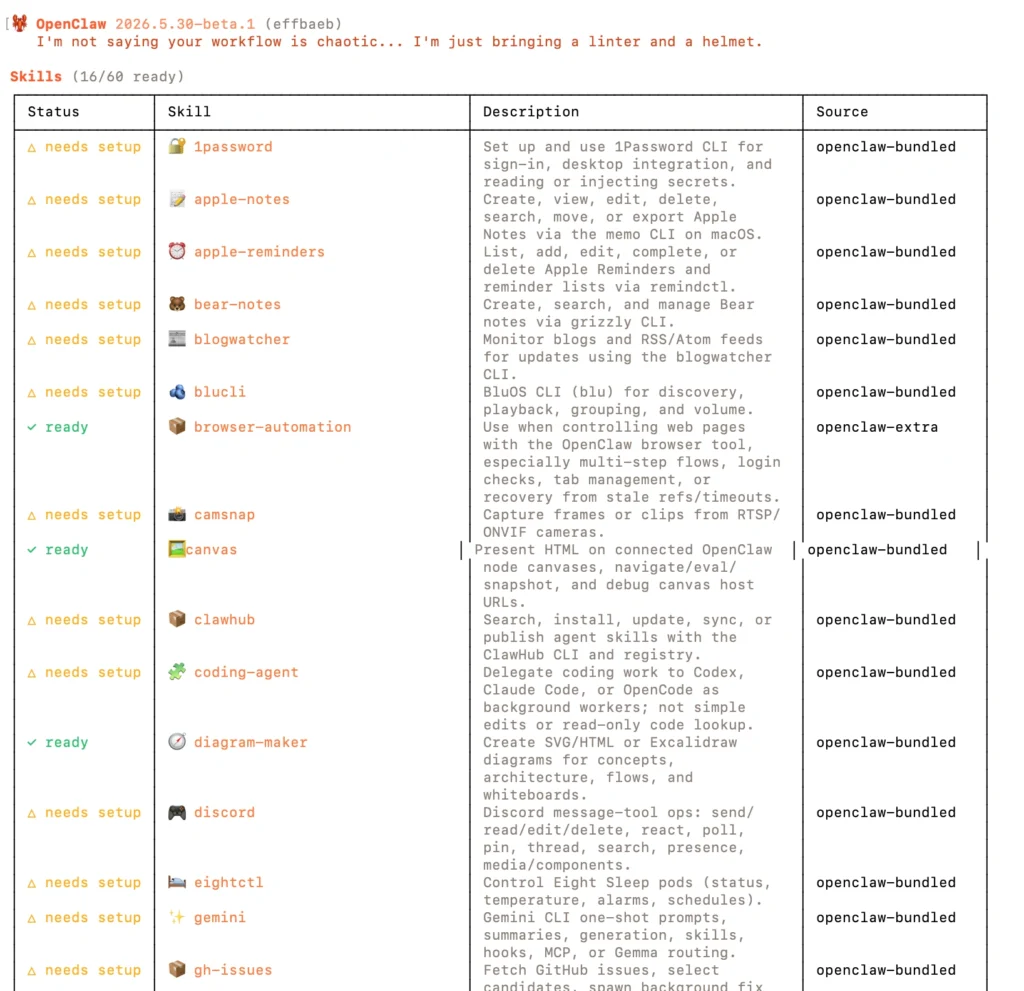
- Bundled skills – pre-packaged when you install OpenClaw (weather, web search, browser automation…)
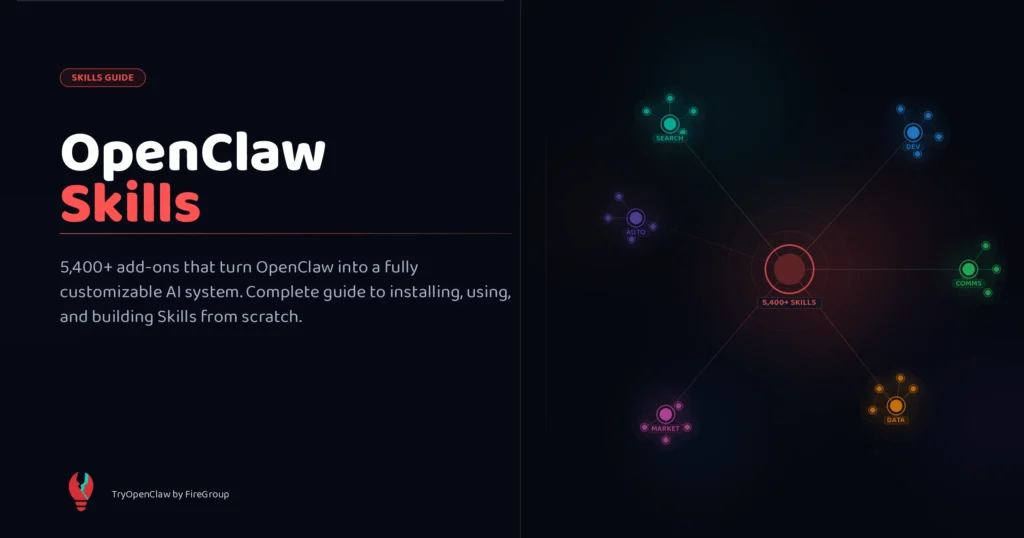
- ClawHub – the official marketplace, currently with over 5,000 community skills
- Private repository – skills you write yourself or built for your team, not shared publicly
Why Does OpenClaw Need Skills?
OpenClaw needs skills because the underlying AI model doesn’t inherently know how to use tools, doesn’t understand your workflows, and doesn’t know when to do what.
Skills are essentially the “on-the-job training” layer for your agent. Put simply:
- Model = the brain
- Tools = the hands and feet
- Skills = the work experience
Without skills, OpenClaw is just a chatbot that calls tools in a fairly random way.
How Are Skills Different from Tools, Models, and Automations?
This is where most people get confused and where most beginners go wrong.
Skills are not plugins, and they’re not extensions
The biggest misconception is thinking that a skill = a new feature being installed, like a plugin in WordPress or an extension in Chrome. Install it and you’ve gained new permissions, new execution capabilities.
The reality is the exact opposite.
Skill = an instruction layer for the agent. A skill teaches the agent how to do something – it doesn’t allow the agent to do it.
Think of it this way:
- Tools = body parts. Hands, feet, eyes. The things the agent uses to interact with the system.
- Skills = textbooks. They teach the agent how to combine those hands, feet, and eyes to accomplish a specific task.
- Model = the brain. Processes language, reasons, makes decisions.
- Automations = the work schedule. Defines when the agent does what, based on triggers or cron jobs.
The OpenClaw docs put it clearly: “A tool is a low-level building block, while a skill is a higher-level, user-facing capability that may orchestrate one or more tools behind the scenes.”
A real-world example: You install the obsidian skill. The agent now knows how to organize notes in Obsidian according to a standard workflow. But if the write tool hasn’t been enabled, the agent still can’t write to files. Skills are instructions. Tools are the execution switch.
This is why you can install a skill and the agent still can’t do anything – because the skill is just an instruction, and the corresponding tool hasn’t been enabled.
What’s Inside an OpenClaw Skill?
Open any skill and you’ll find a surprisingly simple structure:
skills/
└── my-skill/
 ├── SKILL.md
 ├── scripts/
 ├── references/
 └── assets/
The SKILL.md file has two parts:
YAML frontmatter – the metadata for the agent to identify the skill:
---
name: my-skill
description: Does the thing I always need done
---
Body section – natural language instructions:
# Instructions
When asked to [do the thing], follow these steps:
1. Step one
2. Step two
3. Step three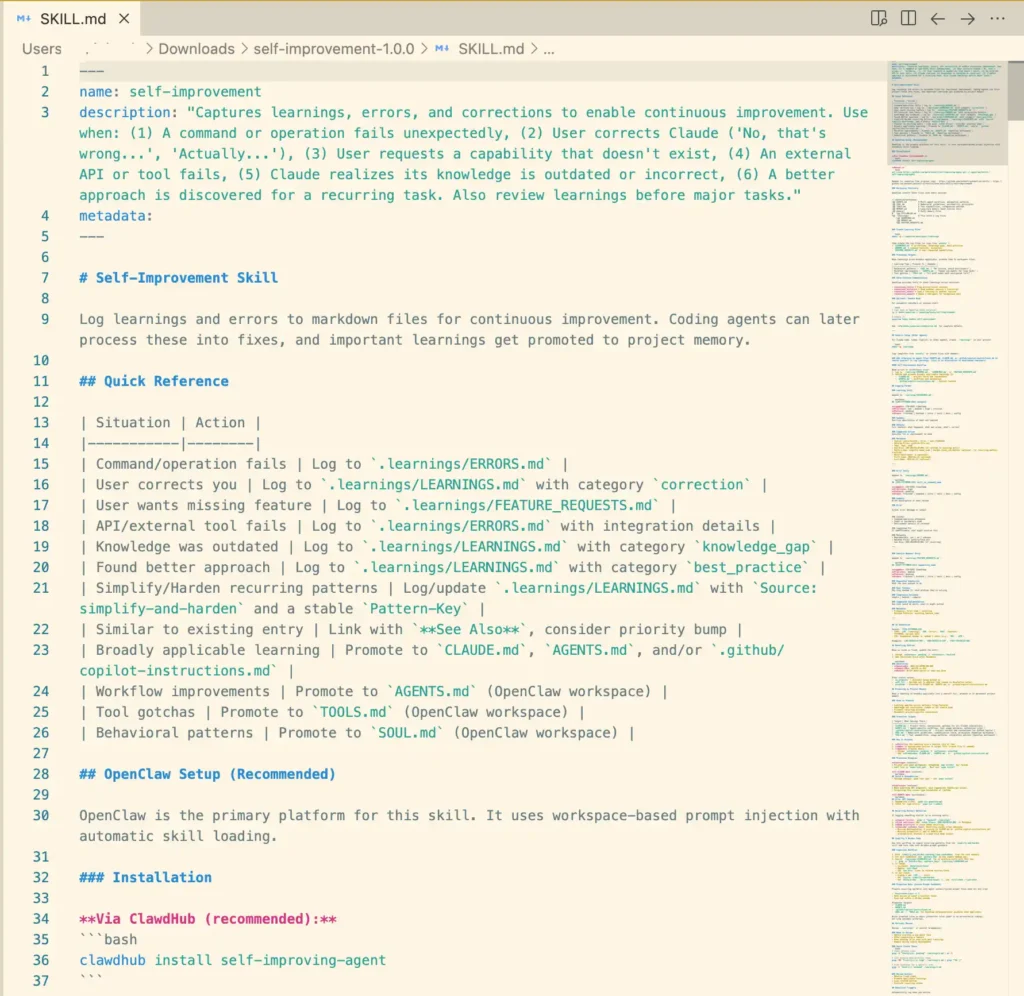
The description field is critically important – it’s exactly what OpenClaw uses to decide which skill matches your request. A vague description means the agent often picks the wrong skill.
Some more complex skills include additional reference files (e.g., templates, schemas) or executable scripts. But the core of every skill is still the SKILL.md file with its plain-text instructions.
How Does OpenClaw Find, Load, and Activate Skills?
At startup, OpenClaw scans three skill directories in priority order:
- Workspace skills (
~/.openclaw/workspace/skills/) – highest priority; these are your personal skills - Managed skills (
~/.openclaw/skills/) – second priority; these are skills installed from ClawHub, shared across all agents - Bundled skills – the skills that come pre-installed with OpenClaw
If two skills share the same name, the higher-priority one wins. This means your workspace skills always override managed and bundled skills – which is very handy when you want to customize behavior without modifying the original file.
During loading, OpenClaw filters out skills that can’t run in the current environment – for example, skills that require an API key that hasn’t been configured, or a system binary that hasn’t been installed.
How Does OpenClaw Decide When to Use a Skill?
You don’t need to memorize skill names or manually select which one to run. Just tell OpenClaw what you want to do as if you’re assigning a task to a colleague.
When it receives a request, the agent will understand your goal, look through the available skills to find the best match, and select the most appropriate tool. From there, it will:
- Read the instructions in that skill
- Prepare inputs based on the conversation context
- Execute the skill and process the output
- Respond in natural language
This is exactly what makes OpenClaw so flexible. You can combine multiple skills to build an agent that’s specialized for exactly the work you need, instead of having to build everything from scratch.
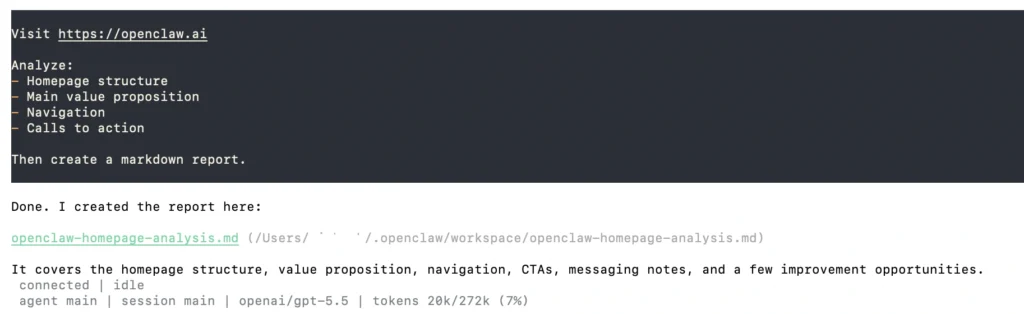
For example, if you ask OpenClaw to analyze a website and create a Markdown report, the agent will automatically activate the relevant skills for browsing, data collection, and content processing. A few minutes later, you’ll have a complete report.
The Practical Benefits of Using Skills
OpenClaw Skills don’t just help your agent do more – they also make building and running AI agents simpler, more flexible, and far easier to scale.
- Cleaner architecture: Instead of cramming every integration directly into the agent logic, you split things out into independent skills. Easier to test, easier to debug, easier to remove when you no longer need them.
- Reusable: The same skill works across multiple agents. You don’t have to rewrite workflows every time you create a new agent.
- Easy to customize: Skills are plain Markdown – just copy one from ClawHub to your workspace, adjust the instructions as needed, no code required.
- Unlimited extensibility: ClawHub currently has over 5,000 skills covering everything from Google Ads management to academic paper retrieval. The community adds new skills every day.
- Shorter path from prototype to production: Because skills have been battle-tested by the community, you don’t have to start from scratch for every integration.
The Most Common Skill Categories Right Now
The OpenClaw Skills ecosystem is quite diverse, but most users tend to gravitate toward a few main groups:
- Development Skills help speed up everyday programming tasks – from code review, debugging, and pull request checks to automating GitHub workflows, CI/CD pipelines, and sandbox testing.
- Productivity Skills focus on personal and team task management. Popular skills in this group can connect to Google Workspace, manage notes in Obsidian, summarize meetings, or log your entire agent work history.
- Content & Research Skills are heavily used by marketers, content creators, and researchers. They can research topics, summarize long documents, monitor websites, generate academic citations, or rewrite content to sound more natural.
- Communication Skills help handle communication channels like Slack, Discord, and email. Some skills can even auto-categorize emails, draft replies, or summarize important discussions throughout the day.
- DevOps & Monitoring Skills are a fit for technical teams that need to monitor systems. These skills can analyze logs, handle alerts, monitor websites, or run periodic checks and send AI-generated reports.
- Automation & Smart Home Skills help OpenClaw connect with external tools like Home Assistant, n8n, or custom webhooks to automate a wide range of processes.
If you’re just getting started with OpenClaw, don’t worry about having to install everything from scratch. The default installation usually comes with a handful of basic skills out of the box: weather lookup, web search, browser automation, Discord, and 1Password integration for credential management.
A Common Mistake: Turning OpenClaw Into a “Skills Collection”
This is the classic trap.
New users discover ClawHub, see 5,000+ skills, and their eyes light up. They install more. And more. And even more. By the time they have 40 skills installed, the agent starts to… lose its way.
The problem: when too many skills have similar descriptions, the agent struggles to pick the right one. The result is inconsistent behavior – the wrong skill gets triggered, or the agent doesn’t know which one to use and just does its own thing.
Skills aren’t a game. They’re tools. And like any good toolset, less is more.
Simple rule: only install skills for workflows you’re actually using. If a skill doesn’t solve a specific problem in your workday, it has no business being in your agent.
Use-Case First: How to Choose the Right Skills for Your Needs
Instead of starting with “what skills look cool,” start with “what do I want to automate.”
- Step 1: Define a specific workflow. Not “I want the agent to help me work” but “I want the agent to summarize my unread emails every morning and highlight the ones that need a reply.”
- Step 2: Map that workflow to the tools it requires. Email needs the email tool. Summarizing needs a model with a long context window. Highlighting needs the agent to understand your priorities – meaning instructions inside a skill.
- Step 3: Find a matching skill on ClawHub or write a new one if nothing fits. Read the description and instructions carefully before installing.
- Step 4: Test on a small use case first. Don’t put it straight into your production workflow.
A few skills worth starting with for beginners: humanizer (makes output sound more natural), summarize (useful from day one), and session-logs once you’ve built up enough history and need to search back through it.
Security Risks to Know Before Installing Skills
This section matters. Read it carefully before installing anything from ClawHub.
OpenClaw runs with broad system access: files, API keys, browser data, terminal commands. When a skill is loaded, it inherits all of that access. A malicious skill = an attacker with the same permissions as your agent on your machine.
And this isn’t just theoretical. In 2026, a number of serious security incidents have been documented:
- Snyk discovered 341 malicious skills on ClawHub, with 335 of them belonging to the ClawHavoc campaign – masquerading as cryptocurrency trading tools while actually installing Atomic Stealer to steal browser passwords, crypto wallet keys, and SSH credentials on both macOS and Windows.
- Silverfort discovered a vulnerability in ClawHub’s ranking system that allowed attackers to push malicious skills to the #1 position in a category. In a proof-of-concept, that skill reached 3,900 executions in 6 days, across more than 50 cities worldwide including companies publicly traded on stock exchanges.
- Snyk also found that 36% of skills on ClawHub contain prompt injection – hidden instructions that direct the agent to do something different from what’s described publicly, including exfiltrating your files.
How to reduce your risk:
- Read the skill’s source code on GitHub before installing, don’t just read the description
- Prioritize skills with many stars, reputable maintainers, and community reviews
- Disable auto-update for skills; update manually after reviewing the changelog
- Don’t install skills that request broader permissions than the task requires
- Use workspace-level skills instead of global installs when you want to test a new skill
ClawHub has integrated VirusTotal scanning since early 2026, but that’s not a perfect safety net. Reviewing before installing is still a step you can’t skip.
Should You Build Your Own Skills?
Short answer: yes, and it’s easier than you think.
Writing a skill is essentially writing a Markdown file with YAML frontmatter and step-by-step instructions in plain English. No coding required. The barrier to entry is low enough that anyone comfortable expressing themselves clearly can do it.
You should write your own skill when:
- You have a recurring workflow that no ClawHub skill can handle
- A skill on ClawHub is close but needs its instructions customized for your context
- The workflow involves sensitive data and you don’t want to depend on a third-party skill
- You need the agent to follow a specific internal process (SOPs, checklists, your own templates)
The most important thing when writing a skill: the description field must be extremely specific. It’s what the agent uses to match the skill to your intent. A vague description leads to the skill being triggered at the wrong time or never at all.
Once you’ve written it, drop it in ~/.openclaw/workspace/skills/, restart the agent, and you’re ready to go.
Managing Skills Without Touching the Terminal
OpenClaw offers a lot of customization power, but in exchange, users typically have to manage the server, API keys, skills, connectors, and config files themselves. For newcomers, this is usually the most time-consuming part of the setup process.
If you want to experience OpenClaw without self-hosting or maintaining your own infrastructure, TryOpenClaw.io is worth considering. It’s a cloud-hosted version of OpenClaw, pre-configured so you can get started in just a few minutes instead of spending hours or even days setting everything up from scratch.
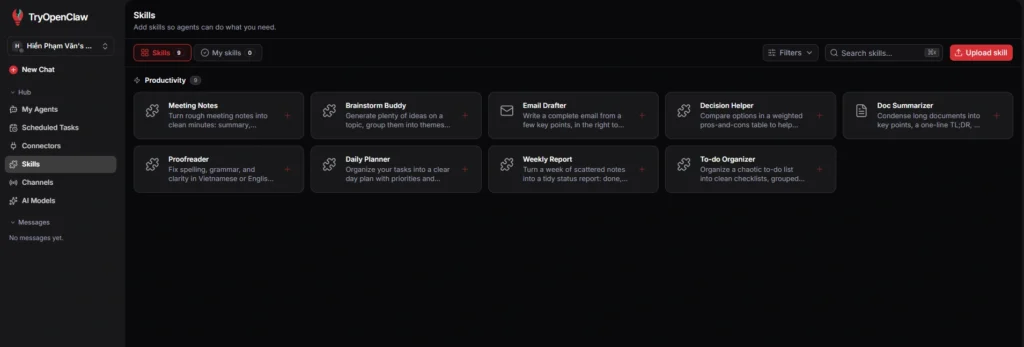
With TryOpenClaw, you can manage the entire OpenClaw ecosystem from a single dashboard. Skills, Connectors, Agents, and AI Models are all presented visually, making it much easier to create, edit, or experiment with new workflows.
You won’t need to find the right folder to upload skills, edit YAML files, or SSH into a server every time you want to change a configuration. Most actions can be done directly through the web interface.
Summary
OpenClaw Skills are not plugins, not extensions, not something you install to “unlock features.” They’re an instruction layer – the thing that transforms your agent from a smart LLM into a real collaborator that knows how to work the way you do.
Understanding that changes how you approach the entire OpenClaw ecosystem. Instead of collecting skills, you design workflows. Instead of asking “what can this skill do,” you ask “what does my agent need to learn to solve this problem.”
Start small. Understand which tools are enabled. Write or choose skills with very specific descriptions. And never install a skill without reading the source.
Do those things right, and OpenClaw will be one of the most useful tools you’ve ever worked with.
FAQ About OpenClaw Skills
Do skills automatically grant the agent additional permissions?
No. Skills are just instructions. Execution permissions are controlled by tools. Installing the obsidian skill doesn’t mean the agent can write files – if the write tool isn’t enabled, the agent still can’t do anything.
How many skills is enough?
There’s no magic number. The rule: only install skills for workflows you’re actually using. Too many skills with similar descriptions cause conflicts and lead to the agent picking the wrong one.
Do skills work in every environment?
No. When loading, OpenClaw automatically filters out skills that can’t run. For example, skills that require a macOS GUI won’t work on a headless server. Apple Notes and Apple Reminders are classic examples of this.
Can I use the same skill across multiple agents?
Yes. Skills in ~/.openclaw/skills/ (managed) are shared across all agents on the same machine. Workspace skills only apply to the agent they’re installed for.
What happens if two skills have the same name?
The workspace skill wins. Managed skills win over bundled skills. Priority order: workspace > managed > bundled.
Are skills from ClawHub safe?
Not all of them. Read the security risks section above carefully, and always review the source before installing.
Related Posts

Cách yêu cầu AI agent tổng hợp số liệu kinh doanh từ file Excel
Cách dùng trợ lý AI đọc tài liệu API nhanh chóng cho lập trình viên