
How to Create OpenClaw Skills: The Complete Developer Guide (2026)
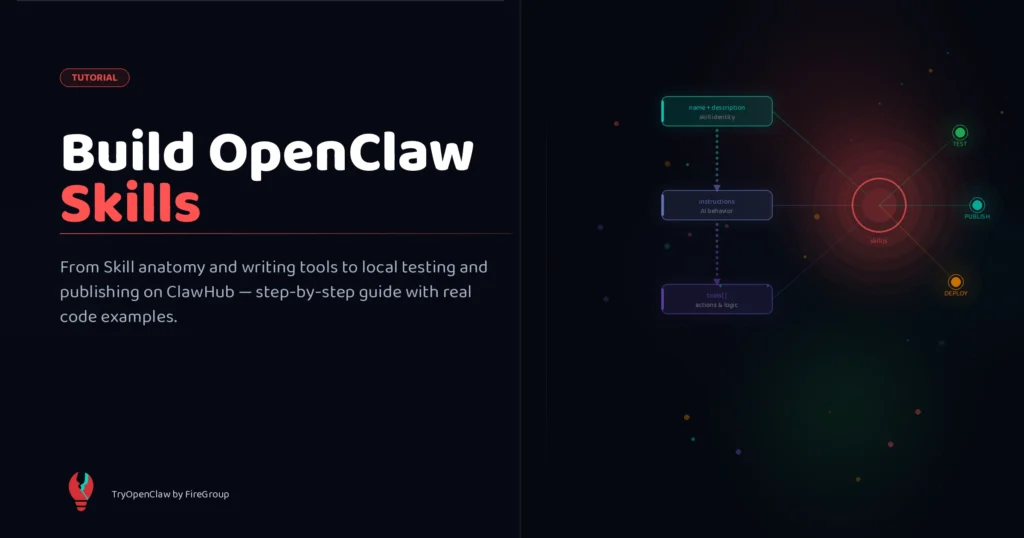
Most OpenClaw skill tutorials show you one thing: here’s the SKILL.md template, fill it in, install it. That’s a starting point — but it’s only a starting point.
Building skills that actually work in production requires understanding how the system reasons about them, why descriptions are trigger phrases not titles, what token overhead means for your prompt budget, and when to use command-dispatch to bypass the AI entirely for deterministic workflows.
This guide covers all of it — three creation methods, the runbook body pattern, gating, security, common mistakes, and the publishing process on ClawHub.
Background reading: OpenClaw Skills: Complete Guide explains what Skills are and how they’re organized. This article assumes you’re ready to build.
How Skills actually work (before you write one)
A Skill is a Markdown file (SKILL.md) that lives in one of several directories OpenClaw scans at startup. When a session begins, OpenClaw snapshots all eligible Skills into the system context. The AI reads each Skill’s description to understand when to invoke it.
The 6-level precedence hierarchy (highest to lowest):
<workspace>/skills/— project-specific, highest priority<workspace>/.agents/skills/— agent-scoped overrides~/.agents/skills/— user-level agent skills~/.openclaw/skills/— personal shared skills- Bundled skills (shipped with OpenClaw)
skills.load.extraDirs— custom paths from config
When the same skill name appears at multiple levels, the highest level wins. This matters when forking a community skill and customizing it locally — your workspace version will always shadow the installed one.
Two important things Skills cannot do:
- Skills don’t grant permissions. A Skill that runs shell commands will fail if your tool policy blocks
exec. Configure allowed tools separately in your OpenClaw config. - Skills are snapshotted at session start. Changes to a SKILL.md file won’t affect an in-progress session unless you enable the watcher (more on that below).
Three ways to create a Skill
Method 1: Generate from chat (fastest first draft)
Ask OpenClaw directly:
Create a skill that monitors a service log file for errors and sends me a Telegram summary every hour.OpenClaw generates a SKILL.md draft and saves it to ~/.openclaw/skills/. This is the fastest path — but auto-generated skills tend to be “verbose and optimistic” as LumaDock puts it. They often miss sharp boundaries around failure cases and need guardrail review before you use them in production.
Use this method to get 80% there quickly, then edit the result.
Method 2: Fork an existing Skill
ClawHub has 5,400+ Skills. Rather than starting from scratch, find one that does something similar:
clawhub skill install log-triageThe SKILL.md lands in your workspace skills folder. Open it, read it, customize it for your use case. This is faster than writing from scratch and gives you a battle-tested structure to work from.
Method 3: Write manually
The most control. Create a file at ~/.openclaw/skills/my-skill/SKILL.md with the structure covered in the next section.
The anatomy of a well-built Skill
Every SKILL.md has two parts: frontmatter and body.
Frontmatter
---
name: log-error-monitor
description: Monitor a service log file for errors in a time window and summarize by severity. Use when asked to check logs, review errors, or triage service issues.
version: 1.0.0
requires:
  bins: [jq, ripgrep]
  env: [LOG_SERVICE_PATH]
config:
  logPath:
    description: Path to the log file to monitor
    env: LOG_SERVICE_PATH
---
Key frontmatter fields:
description — the most important field. This is not a title or marketing copy. It’s a trigger phrase: the AI compares your message against all Skill descriptions to decide which one applies. Write it as if you’re describing the task to a coworker: “Monitor a log file for errors… Use when asked to check logs…”. Descriptions that are too vague cause wrong-skill firing. Overlapping descriptions between skills cause unpredictable behavior.
requires.bins — list of CLI binaries this Skill needs. If any are missing, the Skill is gated out (not loaded into context). This is how you prevent the Skill from appearing in the prompt when it can’t actually run.
requires.env — required environment variables. Gated out if not set. Never hardcode secrets in SKILL.md — use this pattern instead.
config — exposes configurable values in the ClawHub UI and in settings.yaml. Put anything that might change (paths, thresholds, endpoints) here.
disable-model-invocation: true — when set, the Skill is excluded from the automatic invocation system. The AI won’t auto-call it. It only runs when you trigger it explicitly via slash command. Use this for destructive or high-risk operations where you always want explicit human intent.
command-dispatch: tool — makes the Skill available as a deterministic slash command (/my-skill) that bypasses the LLM entirely. The registered tools execute directly in sequence without model interpretation. Use this for workflows that should always run the same way — backup checks, deploy scripts, structured reports.
Body: the runbook pattern
The body is where most beginners go wrong. The AI needs a runbook — specific, ordered, actionable — not a description. LumaDock frames it well: “Skills should feel like checklists you’d hand to a tired on-call engineer.”
Structure your body with six sections:
## What it does
Summarizes errors from `{config.logPath}` within a time window, grouped by severity
(critical / error / warning). Runs silently if no errors found.
## Inputs
- `logPath` — set in config, or provided inline as the file path
- `timeWindow` — how far back to look, e.g. "1 hour", "24 hours". Default: 1 hour.
- `minSeverity` — minimum level to include: "warning" | "error" | "critical". Default: error.
## Workflow
1. Validate that `{config.logPath}` exists and is readable; stop with clear error if not.
2. Use `ripgrep` to filter entries matching the time window and minSeverity level.
3. Group results by severity using `jq`.
4. Count occurrences per error pattern; show top 10 by frequency.
5. Return the structured summary — do not add commentary or suggestions unless asked.
## Output format
- Header: service name, time range, total errors found
- Table: severity | count | top error message
- Footer: timestamp of most recent critical error (if any)
## Guardrails
- Do not suggest fixes unless explicitly asked.
- Do not read files outside {config.logPath}.
- If no errors are found in the window, respond: "No errors in the last {timeWindow}."
- Stop immediately if the file exceeds 500MB and ask the user to narrow the time window.
## Failure handling
- File not found: "Log file not found at {config.logPath}. Check the config.logPath setting."
- Binary missing: "This skill requires ripgrep and jq. Install with: brew install ripgrep jq"
- Parse error: Return the raw output lines rather than failing silently.
## Examples
- "Check the API service logs for the last hour" → default run
- "Show only critical errors from yesterday" → timeWindow=24h, minSeverity=critical
The {baseDir} placeholder resolves to the Skill’s folder path — useful for referencing local files (templates, lookups) shipped alongside your SKILL.md.
Real-world Skill examples worth studying
humanizer (no external deps, instruction-only) Rewrites AI writing patterns using Wikipedia’s Signs of AI Writing guide. Catches em-dash overuse, words like “delve,” “landscape,” “robust,” and the rule-of-three list pattern. Pure instruction — no tools, no binaries. Shows that Skills don’t need code to be useful.
session-logs (requires jq, ripgrep) Searches your JSONL session history — solves the “compacted context” problem where older turns aren’t visible. Essential for users with long-running projects.
weather (calls wttr.in, no API key) Simple URL fetch — shows the minimal-dependency pattern. Used heavily in morning briefing cron jobs. Good template for any “fetch + format” Skill.
log-triage (production pattern) The LumaDock example Skill. Accepts a service name and time window, returns a structured error summary. Features explicit stop conditions, output format specification, and failure handling for missing binaries — this is what a production-quality runbook looks like.
weekly-ops-report (multi-source aggregation) Combines data from a log file, a GitHub issues API call, and a metrics endpoint into a weekly digest. Shows how Skills can orchestrate multiple tool calls in a defined sequence.
google-workspace (OAuth-gated) Gmail, Calendar, Drive access. Gated via requires.env: [GOOGLE_OAUTH_TOKEN]. Shows the proper pattern for credential-dependent Skills — never hardcode tokens, always gate.
Token overhead and gating
Here’s something most tutorials skip: every eligible Skill costs tokens — even if the AI never invokes it.
The approximate formula:
- 195 base tokens (system context overhead)
- +97 tokens per Skill loaded
- +tokens for description and body length
With 20 always-eligible Skills, you’re adding 500+ tokens to every turn before the AI says anything. With longer Skill bodies, it compounds significantly.
What to do:
Use requires.bins and requires.env gating aggressively. A Skill that requires a binary or env var is excluded from the prompt entirely when that prerequisite isn’t met — zero token cost.
Use disable-model-invocation: true for Skills you want available but don’t want auto-firing. They won’t appear in the auto-invocation pool.
Use command-dispatch: tool for deterministic workflows that don’t need AI interpretation — the deterministic path uses far less context.
The practical rule: keep always-eligible Skills to fewer than 10. Gate everything else.
Security: what you need to know before publishing
OpenClaw Skills are not “content” — they’re an execution surface. A Skill that runs shell commands has access to whatever your user account can access. This is powerful. It also makes Skills a meaningful attack surface.
The Feb 2026 incident: 341 malicious Skills were found on ClawHub (reported on HackerNews) targeting crypto users. The Skills appeared legitimate but executed data collection commands in the background. ClawHub now has automated detection, but it’s community-reported by default — not curated.
How ClawHub’s review actually works:
- Publishing requires a GitHub account at least one week old
- Skills go live immediately after publish — there’s no pre-publish review queue
- Auto-hidden when >3 unique user reports are filed
- Moderators can unhide, delete, or ban
This means community Skills should be treated as user-generated content. Always read a Skill’s body before installing, especially if it uses exec, network calls, or touches sensitive directories.
For Skills you build:
- Never put API keys in SKILL.md. Use
requires.env+config.apiKeywith SecretRef. - Make destructive actions require
disable-model-invocation: true— force explicit invocation. - Scope tool access tightly. A Skill that reads logs doesn’t need write access.
- If a Skill is for internal use only, don’t publish it. Share it as a private Git repo instead.
Development workflow: the watcher
The default development experience requires restarting the OpenClaw gateway to pick up SKILL.md changes. That’s slow. Enable the watcher in your config:
skills:
  load:
    watch: true
    watchDebounceMs: 250
With the watcher enabled: edit your SKILL.md, wait 250ms, and the next turn picks up the change automatically. No restart needed. This is essential for iterative development.
Note: some environments still cache the session snapshot. If changes aren’t being picked up, start a new session.
Common mistakes (and how to avoid them)
1. Vague descriptions causing wrong-skill firing Two Skills with similar descriptions fight for the same queries. Be specific, use action verbs, include “use when” clauses.
2. Multi-line metadata values YAML frontmatter values that span multiple lines break the parser silently. Keep all metadata fields on a single line.
3. Assuming Skills grant permissions A Skill that calls exec fails if your tool policy blocks exec. Skills are instructions, not capability grants.
4. PATH mismatch between terminal and gateway Binaries you installed via Homebrew or ~/bin may be invisible to the OpenClaw gateway process. Run openclaw doctor --repair or check your launchd configuration. This is why requires.bins gates are sometimes failing even after you’ve installed the binary.
5. Not accounting for token overhead Installing 30 Skills and leaving them all eligible is a fast path to slow, expensive sessions. Gate aggressively.
6. Writing verbose, optimistic Skill bodies Auto-generated Skills read like blog posts. Trim them. The body should read like a numbered checklist for an engineer under pressure, not a product description.
7. Ignoring failure handling What happens when the log file is missing? When the API returns 429? When a binary isn’t found? Explicit failure handling makes the difference between a Skill that works in production and one that silently fails.
8. Assuming agents.list[].skills merges with defaults In multi-agent setups: a non-empty skills list for a named agent replaces the defaults, it does not merge. If you set agents.list[].skills: [my-skill], that agent gets only my-skill.
9. Secrets in SKILL.md Never hardcode API keys, tokens, or credentials in the body. Use requires.env gating + skills.entries.<skill>.apiKey with SecretRef pattern.
10. Installing without reading ClawHub is open-upload with community moderation. Read the Skill body before installing anything that runs shell commands or accesses sensitive directories.
Publishing to ClawHub
When your Skill is ready for public distribution:
Prerequisites:
- GitHub account at least one week old
clawhubCLI installed:npm install -g clawhub
Publish a single Skill:
clawhub skill publish ./my-skill --changelog "Initial release"Batch sync your entire skills library:
clawhub sync --allDry run (check what would happen):
clawhub skill publish ./my-skill --dry-runRequired fields in SKILL.md frontmatter for publishing:
name— unique slug (lowercase, hyphens)version— semverdescription— the trigger phrasetags— 3–5 tags for discovery (ClawHub uses vector search, not keyword-only)
After publishing: Skills go live immediately. Monitor your Skill’s page for user reports. If you find a security issue, unpublish immediately via clawhub skill unpublish <slug> and notify the ClawHub moderators.
Frequently asked questions
Do I need JavaScript? Can I write a Skill in just Markdown? Yes — if your Skill doesn’t use tools, it’s pure Markdown. The humanizer Skill is a good example: entirely instruction-based, no code, no external deps. JavaScript tools are only needed when you want the Skill to execute shell commands or call APIs.
Can I keep a Skill private and share it with my team? Yes — put your Skill in a private Git repo. Team members clone it to their ~/.openclaw/skills/ directory. No ClawHub publishing needed. For teams on TryOpenClaw.io, private Skill libraries are supported in team plans.
What’s the difference between a Skill and a Plugin? Plugins bundle Skills alongside tools, connectors, and configuration. A Skill is a single SKILL.md file that extends AI behavior. A Plugin is a distribution format that can include multiple Skills plus other components.
How do I test that my description triggers correctly? Ask OpenClaw: “Which skill would you use to [describe your intent]?” — it will tell you which Skill it would invoke and why. Iterate on the description until the right Skill fires reliably.
Can two Skills be active at once? Yes — OpenClaw can apply multiple Skills in a single turn if both descriptions match the query. Design Skill descriptions to be non-overlapping to avoid unexpected interactions.
Where to go next
- Best OpenClaw Skills — curated Skills worth studying as structural references
- OpenClaw Skills Security — deeper dive on the supply chain risk, what to look for in a Skill before installing, and hardening your setup
Related Posts
OpenClaw tìm lỗi code như thế nào
OpenClaw cloud chạy workflow 24/7 thế nào